

Provide Delegated Access via GoDaddy Account - Guided Walkthrough
This guide outlines how to grant delegated access to your GoDaddy account, enabling a third party to manage specific aspects of your account on your behalf. Following this guide ensures the designated party, like WRLD Tech, can effectively manage your domains and products without requiring your constant direct involvement, streamlining essential updates and maintenance.
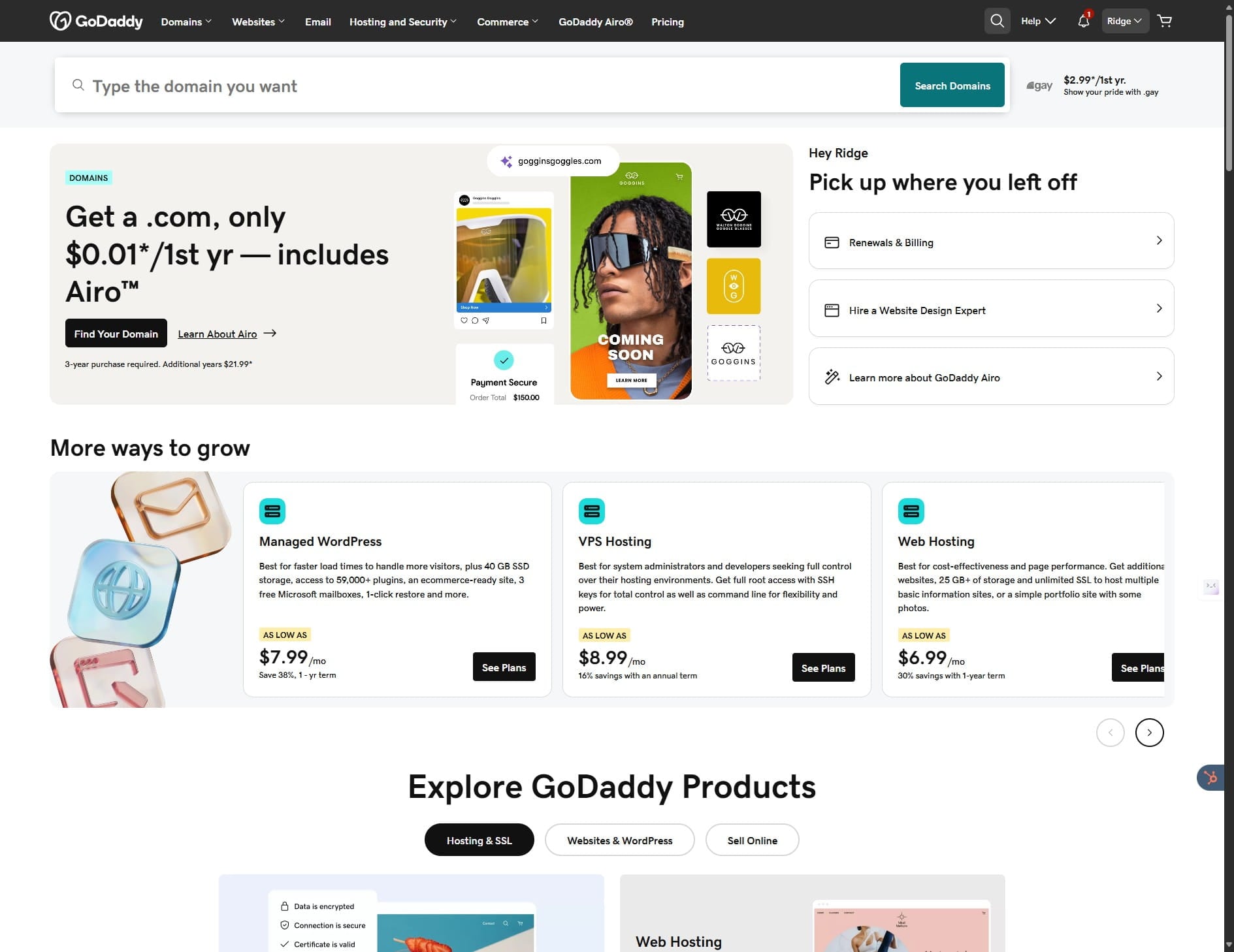
Provide Delegated Access via GoDaddy Account - Guided Walkthrough
This guide outlines how to grant delegated access to your GoDaddy account, enabling a third party to manage specific aspects of your account on your behalf. Following this guide ensures the designated party, like WRLD Tech, can effectively manage your domains and products without requiring your constant direct involvement, streamlining essential updates and maintenance.
Frequently Asked Questions
- Why is it necessary to grant 'Products, Domains, & Purchase' access when delegating access to WRLD Tech?
If you don't grant 'Products, Domains, & Purchase' access, WRLD Tech won't be able to update name server information or other critical settings. This level of access is necessary for them to effectively manage your domain. You retain the ability to remove access and view a log of changes.
- What should I do if the invitation status shows as 'Pending' after inviting WRLD Tech?
If the invitation status remains 'Pending' for an extended period, check your email (including spam/junk folders) for a double-confirmation link from GoDaddy. The invitation won't be sent until you complete this step.
- What email address should I use when inviting WRLD Tech to access my GoDaddy account?
The delegated account for WRLD Tech is under 'ridge@wrld.tech'. Ensure you enter this email address correctly when inviting them to manage your GoDaddy account.