

Scheduling, Rescheduling, and Managing your WRLD Calendar Account | WRLD Team Calendar & Schedule
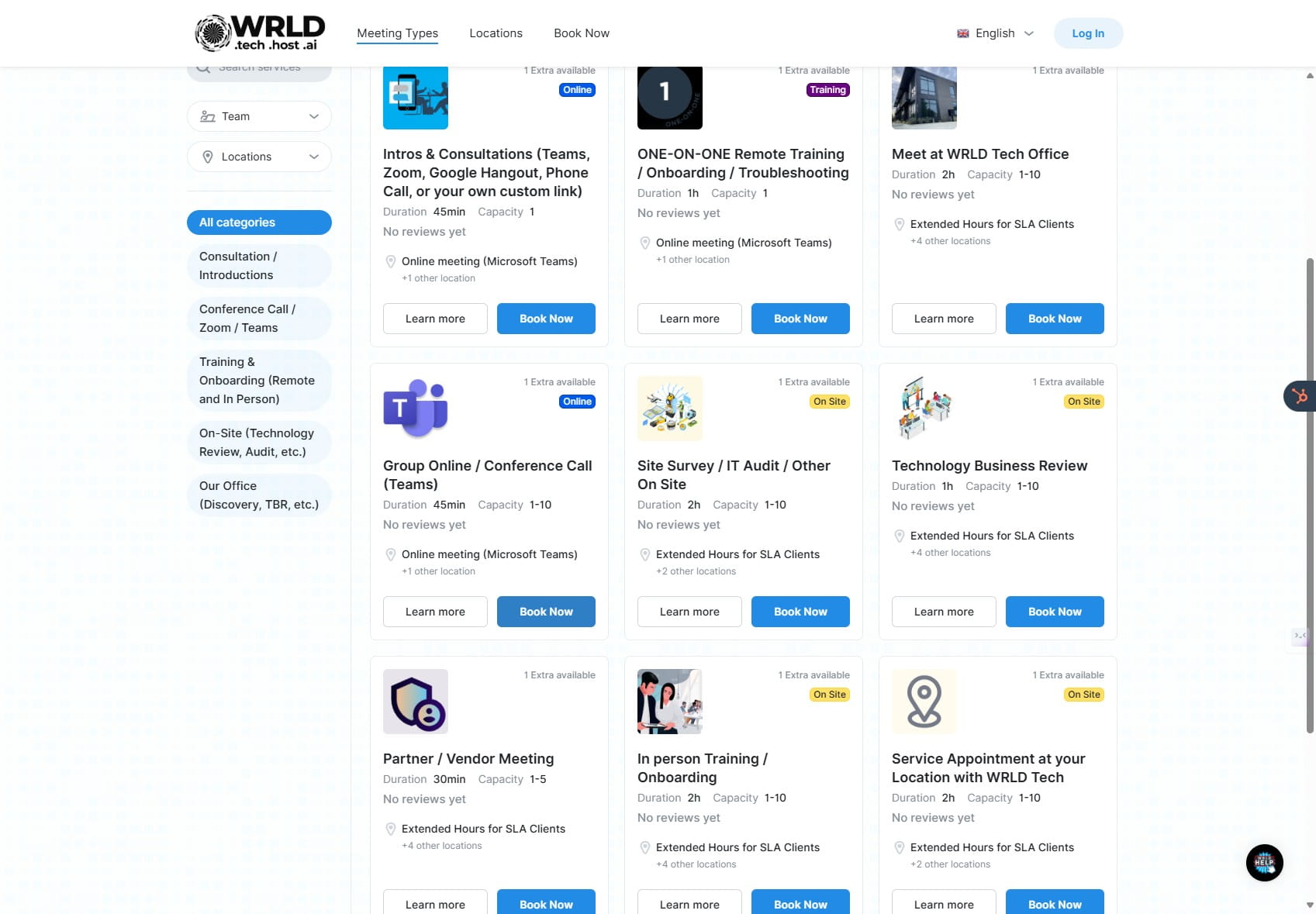
This guide provides a comprehensive walkthrough of the WRLD Team Calendar & Schedule, enabling users to efficiently schedule meetings with team members. It covers various aspects, including booking meetings, rescheduling appointments, joining meetings, leaving feedback, and canceling bookings. The guide equips users with the knowledge and skills to maximize their meeting scheduling experience on the WRLD platform.
 0
0Frequently Asked Questions
- This is a lot. Do I need to do all this?
No! This is recommended for SLA clients that will have multiple meetings over the course of our relationship. We recommend employees use this as well for one-on-one training, and more.
- How do I add additional attendees to a meeting?
You can add additional attendees by clicking the 'Add attendees' icon after choosing your preferred meeting platform. Remember, all attendees must book on the same time slot for the meeting to be confirmed.
- What happens if my meeting request is pending?
A pending meeting request means the Team Member you selected has not yet approved your booking. You will receive a confirmation email and SMS once they approve your request.
- Can I reschedule a meeting after I've booked it?
Yes, you can reschedule a meeting by clicking the 'Reschedule' button on the 'My Bookings' page. Select the desired date and time, and then click 'Reschedule'.
- How do I join a meeting from the WRLD Team Calendar dashboard?
You can join a meeting from the 'My Bookings' page by clicking the 'Join' button. We recommend joining via the Teams app for the best experience, but you can also choose to join on your browser.
- What if I need to cancel a meeting?
You can cancel a meeting by clicking the 'Cancel' icon on the 'My Bookings' page. You can optionally provide a reason for cancellation, but it's not required. It's best to cancel your appointment rather than not showing up.