

Updating to New Payment Processor in Client Area - WRLD Tech Co.
This guide outlines the process for updating your payment method to our new payment processor within the WRLD Tech Co. client area, ensuring seamless and secure transactions.
Navigate to https://wrld.host/clientarea.php
After logging in, click on the billing tab. To login visit https://wrld.host/login - Note if you need to reset your password, please go to https://wrld.host/password/reset
 - Note if you need to reset your password, please go to [https://wrld.host/password/reset](https://wrld.host/password/reset)](https://assets.guidejar.com/uploads/5fe57003-6cba-410b-8044-768b1e795e7c/T3uHNg1zc4aX9wTK9KxgD06sVrq1/87328e5a-123a-4192-b3ad-3026ac4dd662/1744359968826.jpeg)
Click on "Payment Methods"
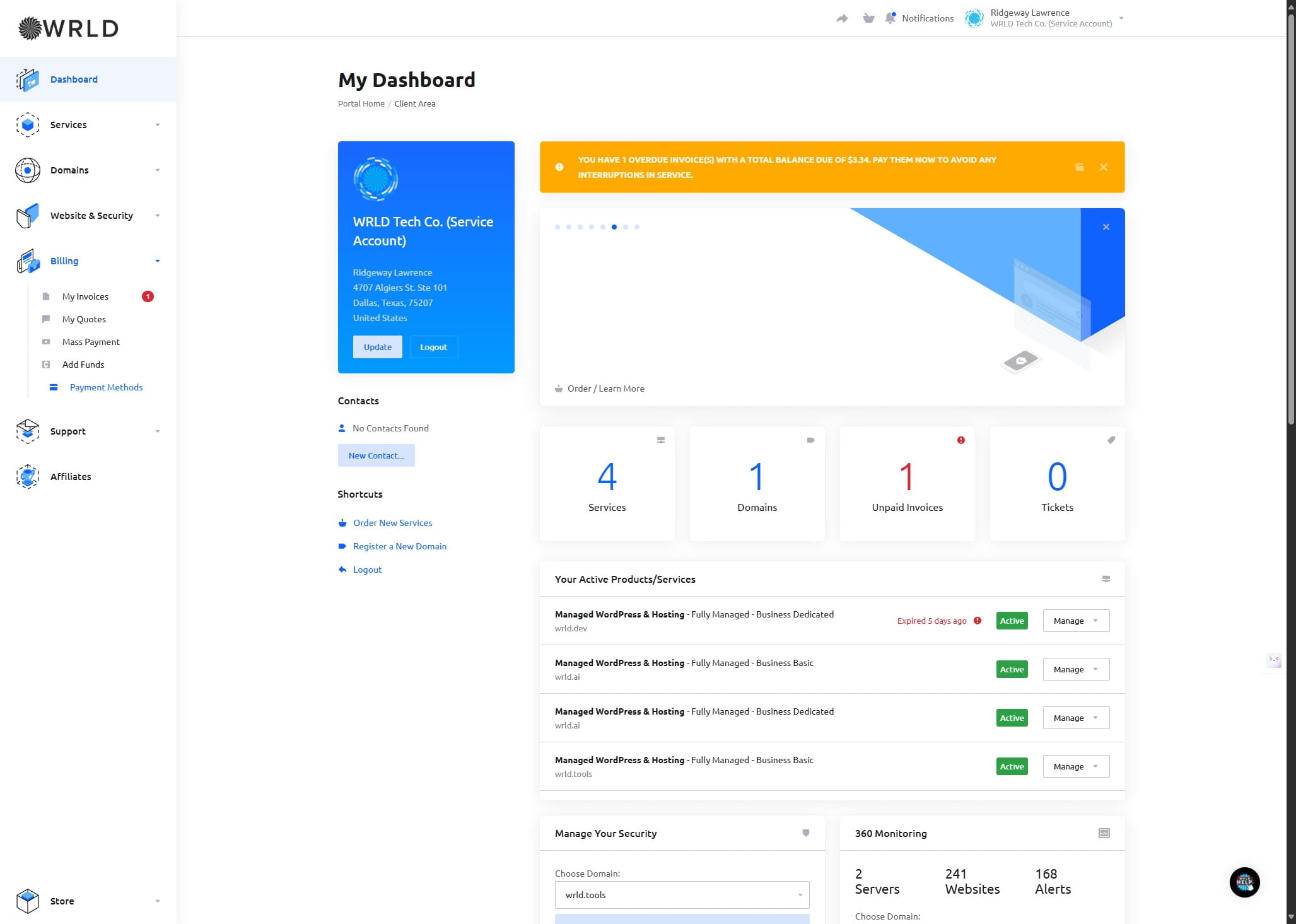
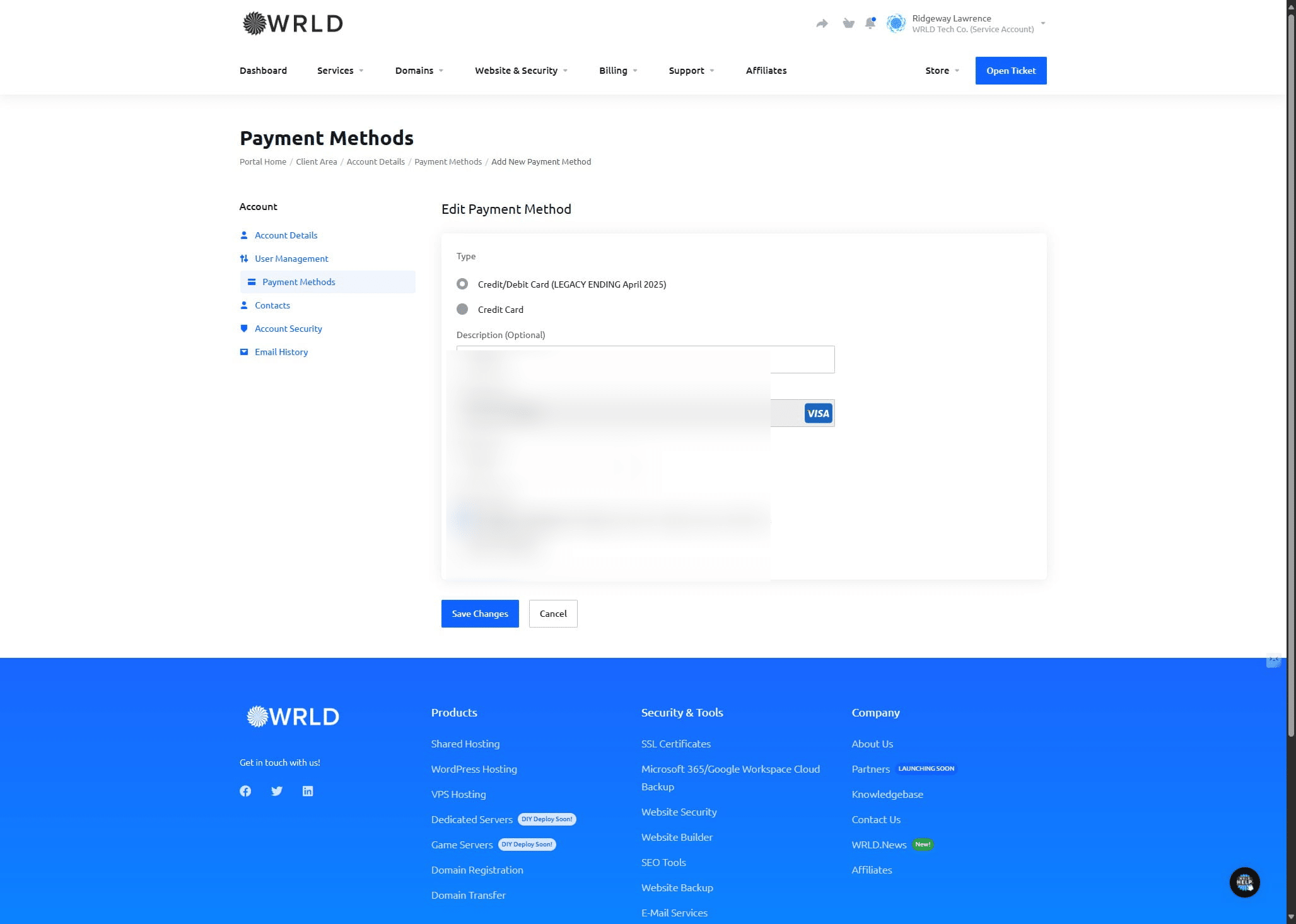
Check if you are on the updated processor by clicking edit and seeing if the payment form says legacy payment method or not. If it just says Credit Card, you are up to date!
Check if you are on the updated processor by clicking edit and seeing if the payment form says legacy payment method or not. If it just says Credit Card, you are up to date!
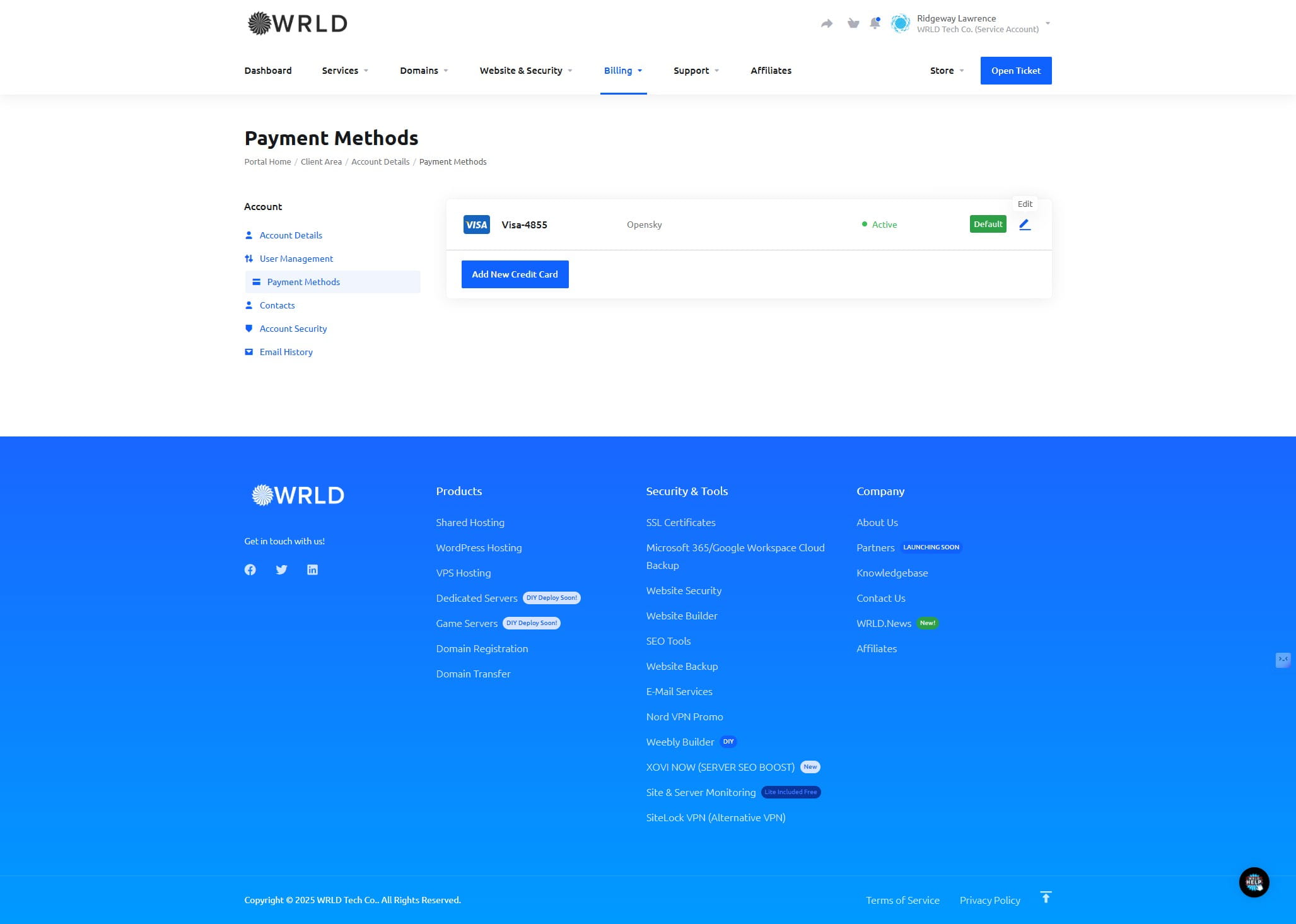
In this example, we need to update it by adding a new card on file since we do not physically store your cards on file.
Head back to payment methods by clicking this link
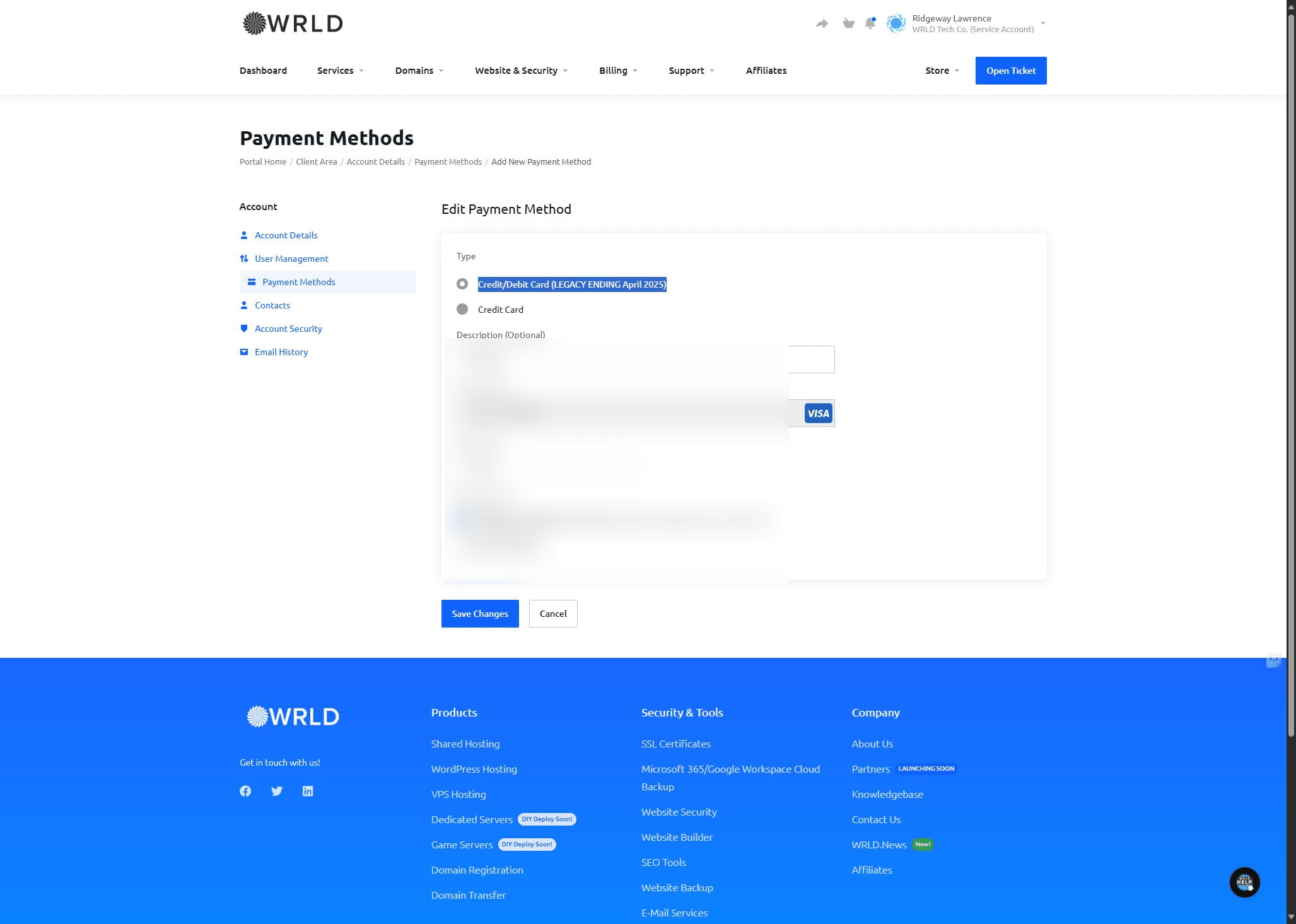
Click on "Add New Credit Card"
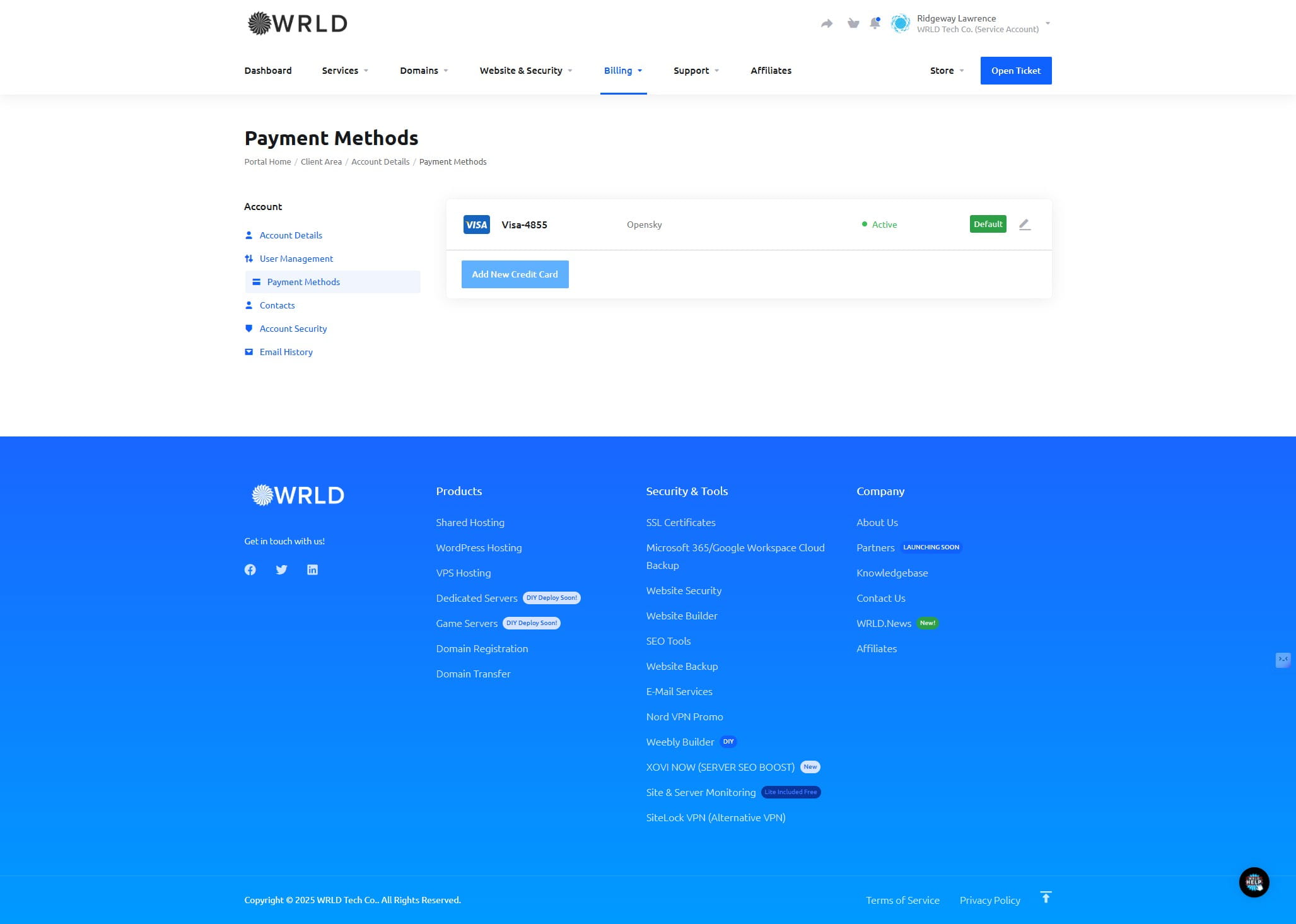
Please make sure you click 'Credit Card' and not the 'Credit/Debit LEGACY ENDING' option.
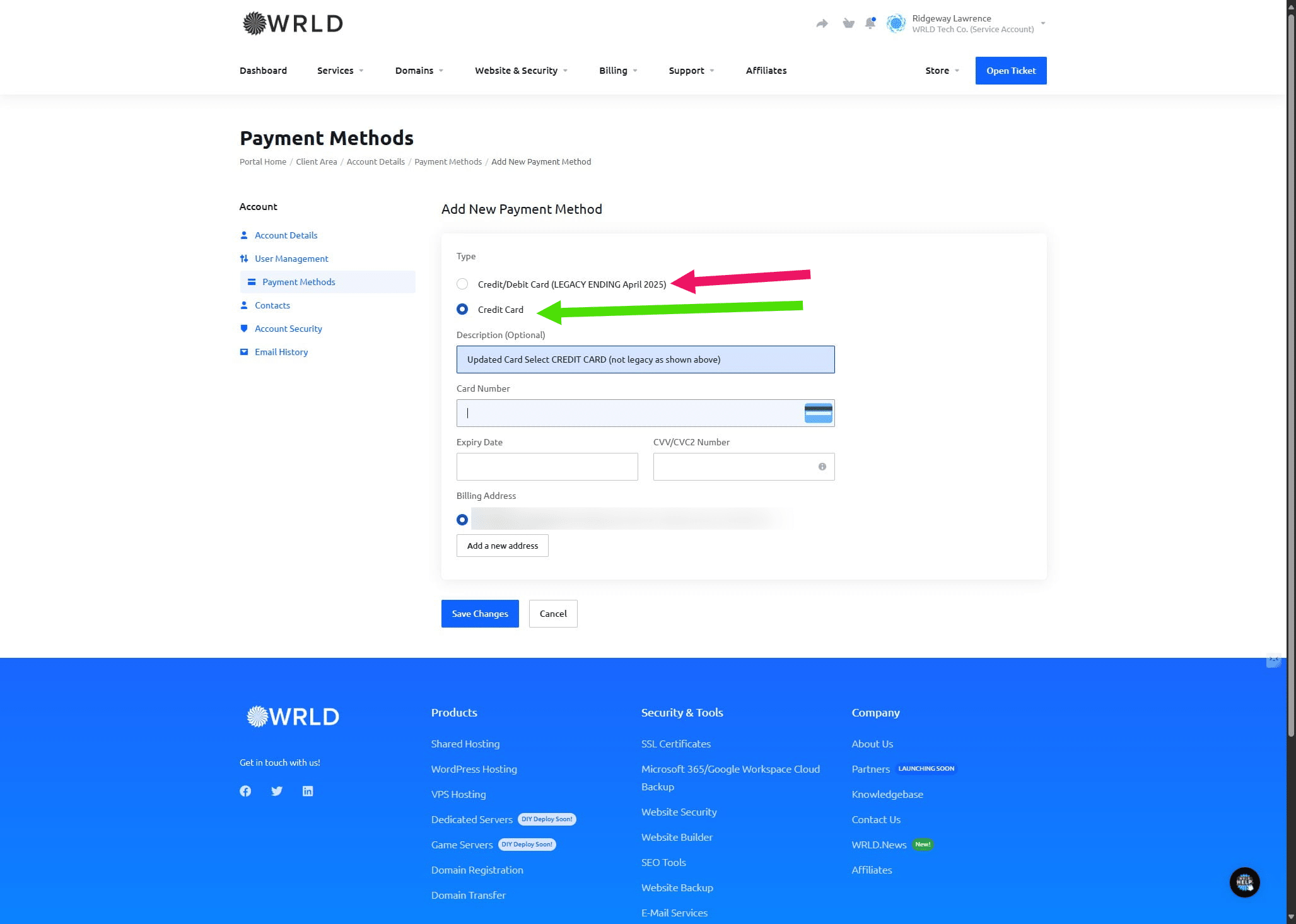
Click on "Save Changes"
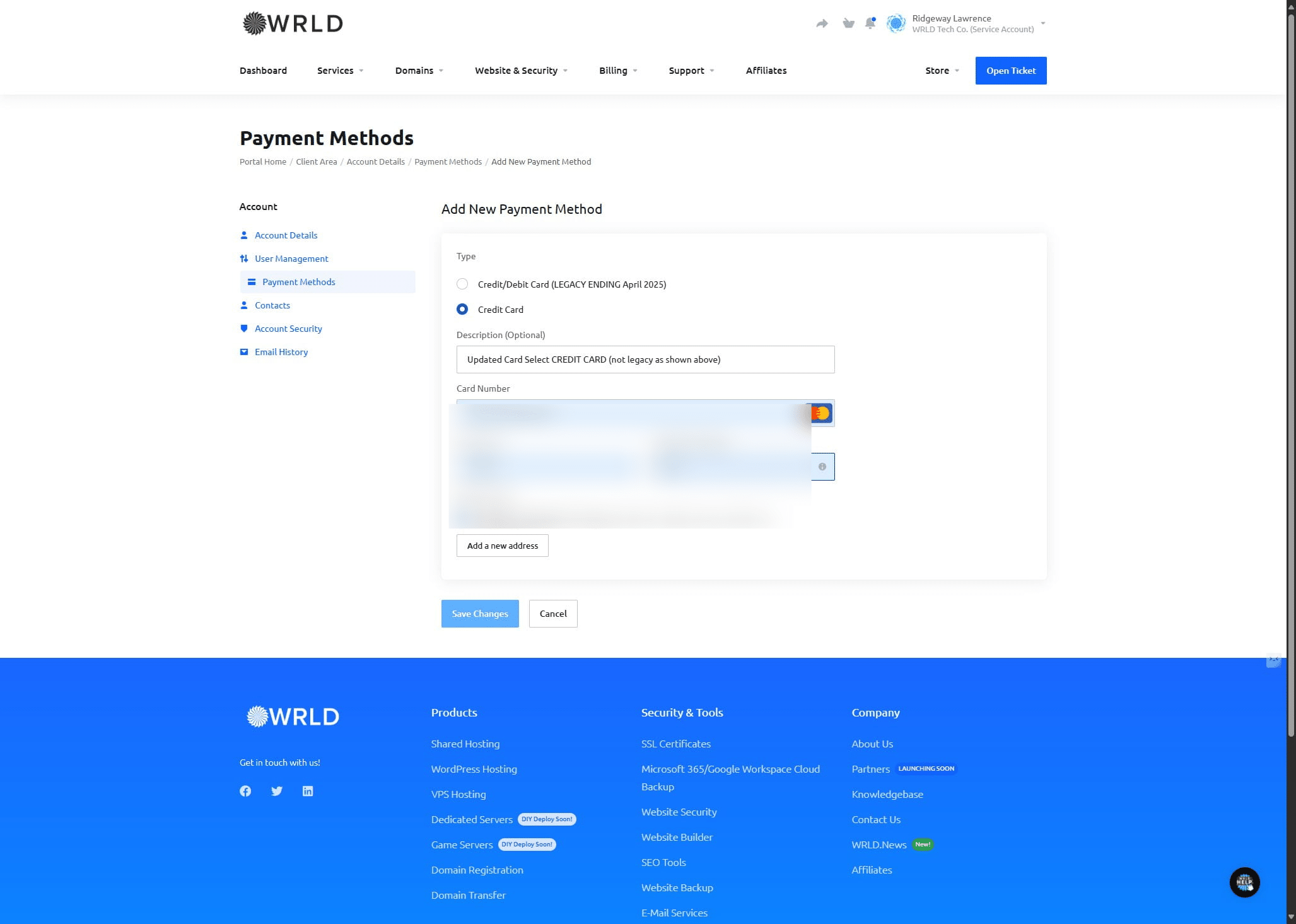
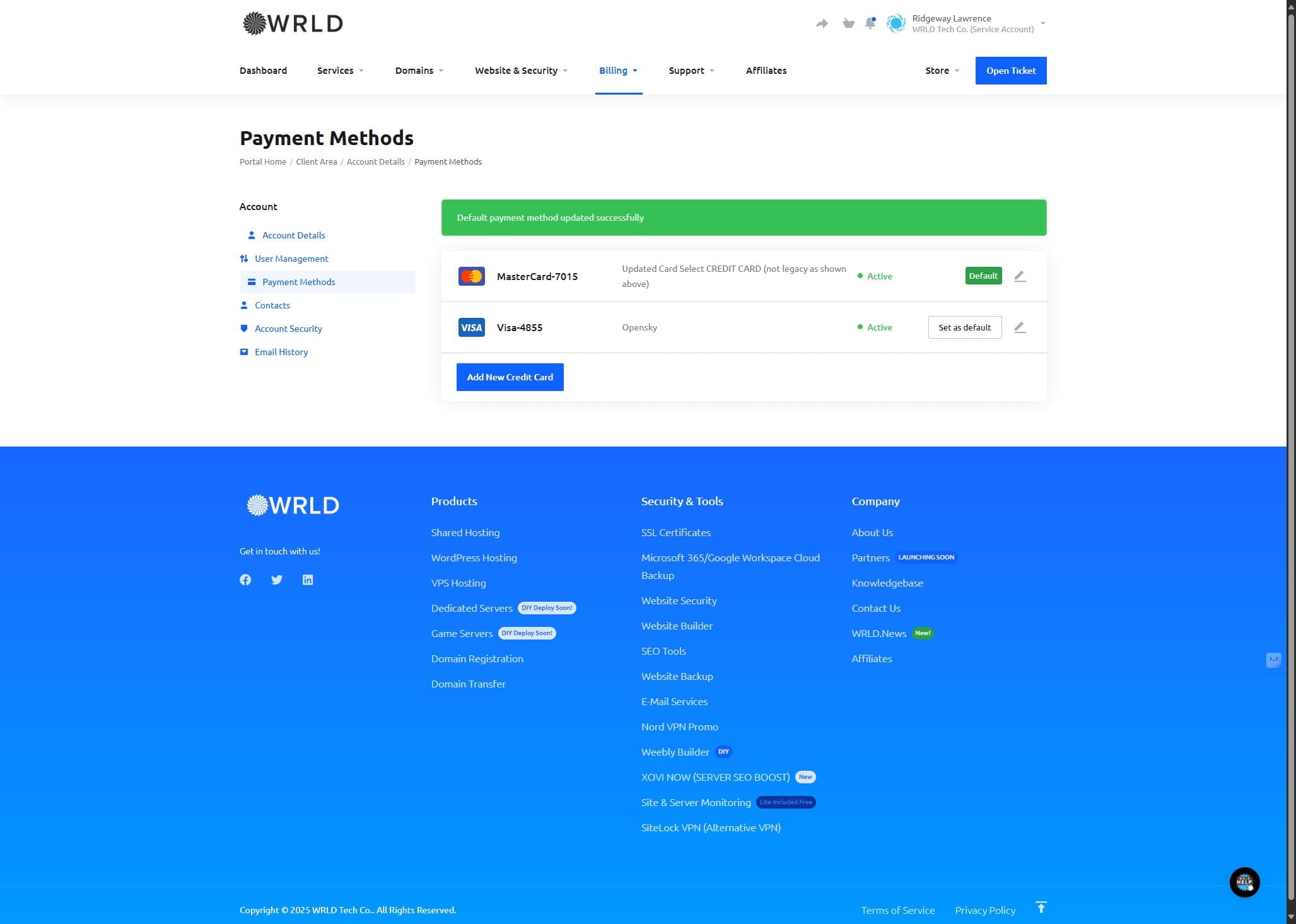
Click on "Set as default"
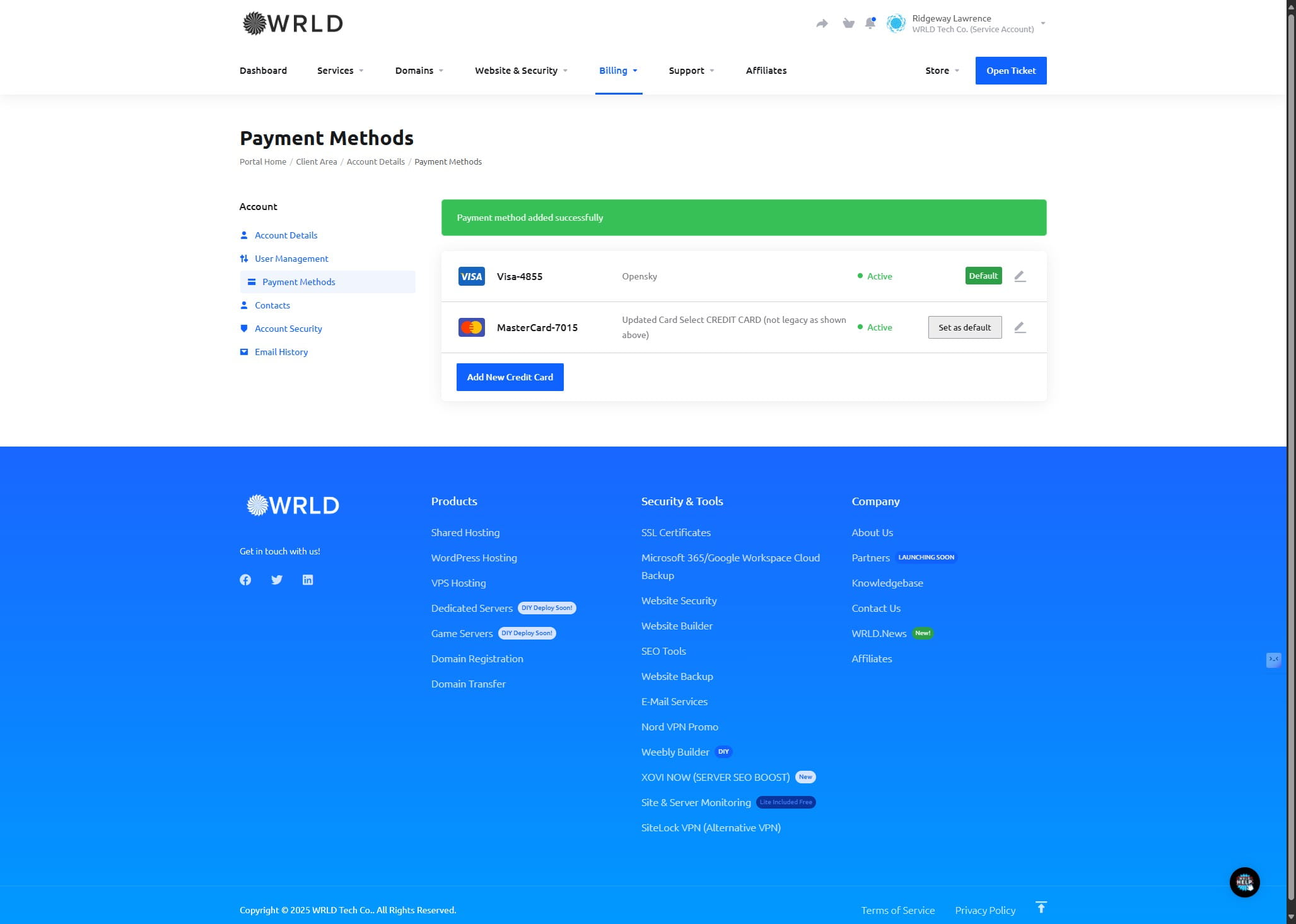
That's it!
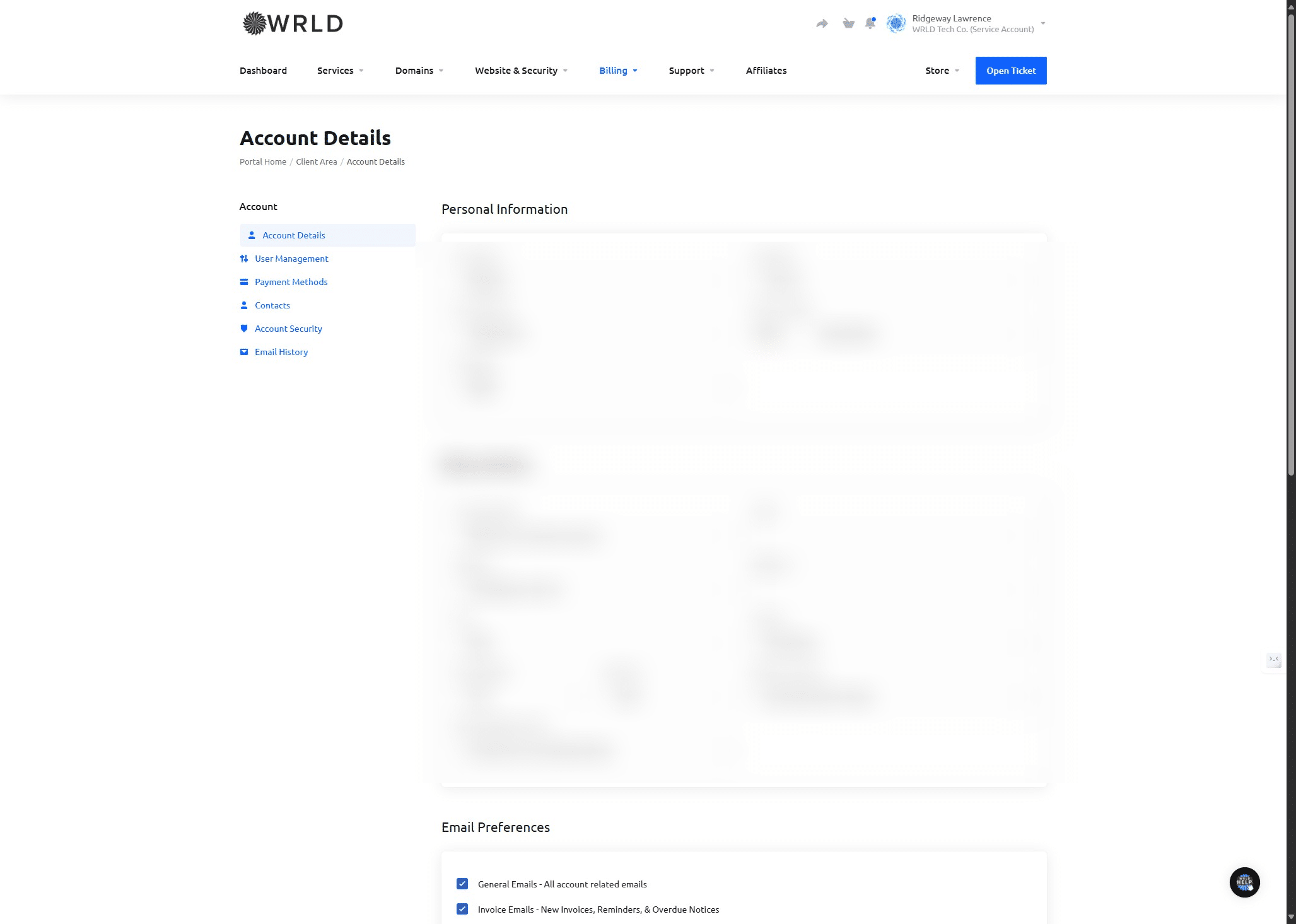
That's it! Optionally, please update billing and account info by clicking here.
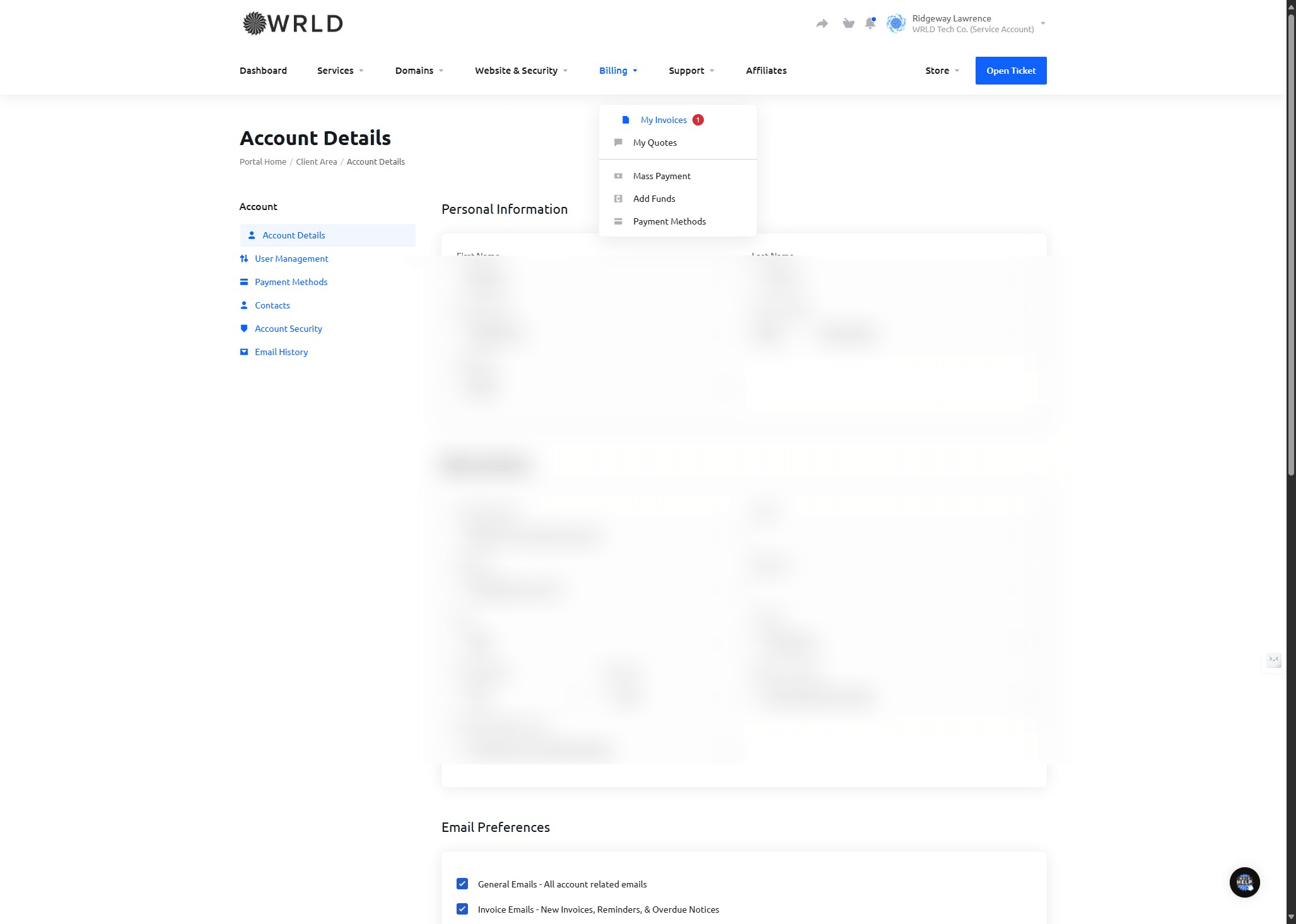
Update as needed. Then, afterward if you have any outstanding bills or would like to review billing proceed to click on "Billing"
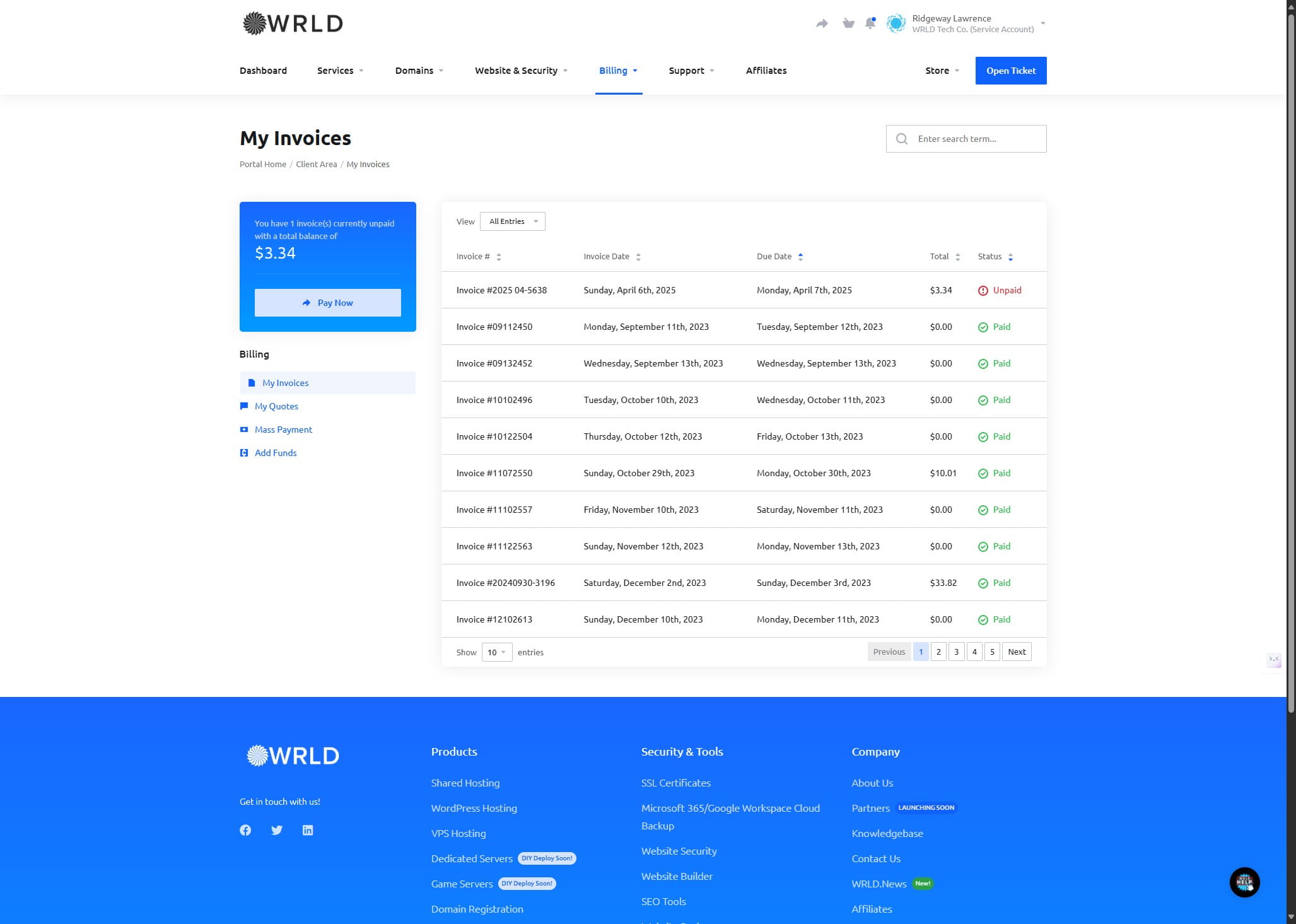
Click this icon
Done 🚀 Our system will automatically remove the old payment method after you add the new one so no need to take further action. Questions? Don't hesitate to reach out and we can also update over the phone just give us a call during business hours at 469.299.9598. Thanks!
Frequently Asked Questions
- How do I access the client area and what do I do if I forget my password?
You can access the client area by navigating to wrld.host/clientarea.php. If you need to log in, visit wrld.host/login. If you've forgotten your password, you can reset it at wrld.host/password/reset.
- How do I check if I'm on the updated payment processor?
After logging in, go to the billing tab and click on "Payment Methods." Edit your current payment method to see if the payment form indicates "legacy payment method." If it just says "Credit Card", you are up to date.
- How do I update to the new payment processor?
Go to "Payment Methods" and click on "Add New Credit Card." Ensure you select 'Credit Card' and not the 'Credit/Debit LEGACY ENDING' option. After adding the new card, click "Save Changes" and then "Set as default."
- Do I need to manually remove the old payment method after adding the new one?
Our system will automatically remove the old payment method after you add the new one, so no further action is needed on your part.